
Working from home is flexible, but your setup really makes or breaks your day. The right space keeps you focused, comfortable, and less distracted—otherwise, it’s easy to slip into bad habits or discomfort.
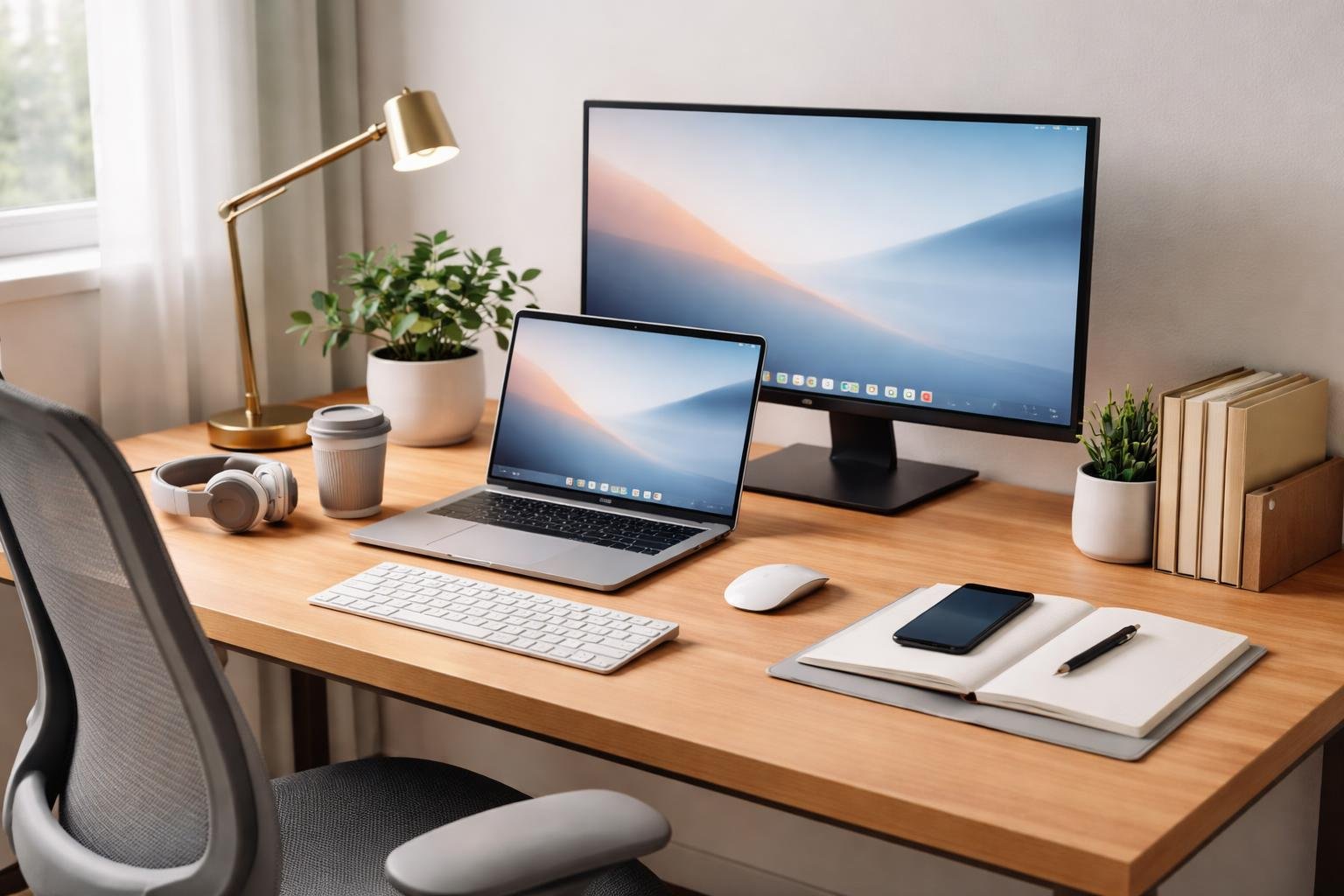
Reliable, ergonomic, and good-quality equipment matters for your posture, focus, and workflow. From your chair and desk to lighting and essential tech, every piece shapes how easily you get through the workday.
Pick your tools with a bit of care and you’ll build a workspace that helps you stay productive and healthy, not just now but over the long haul.
1) Ergonomic Herman Miller Aeron chair
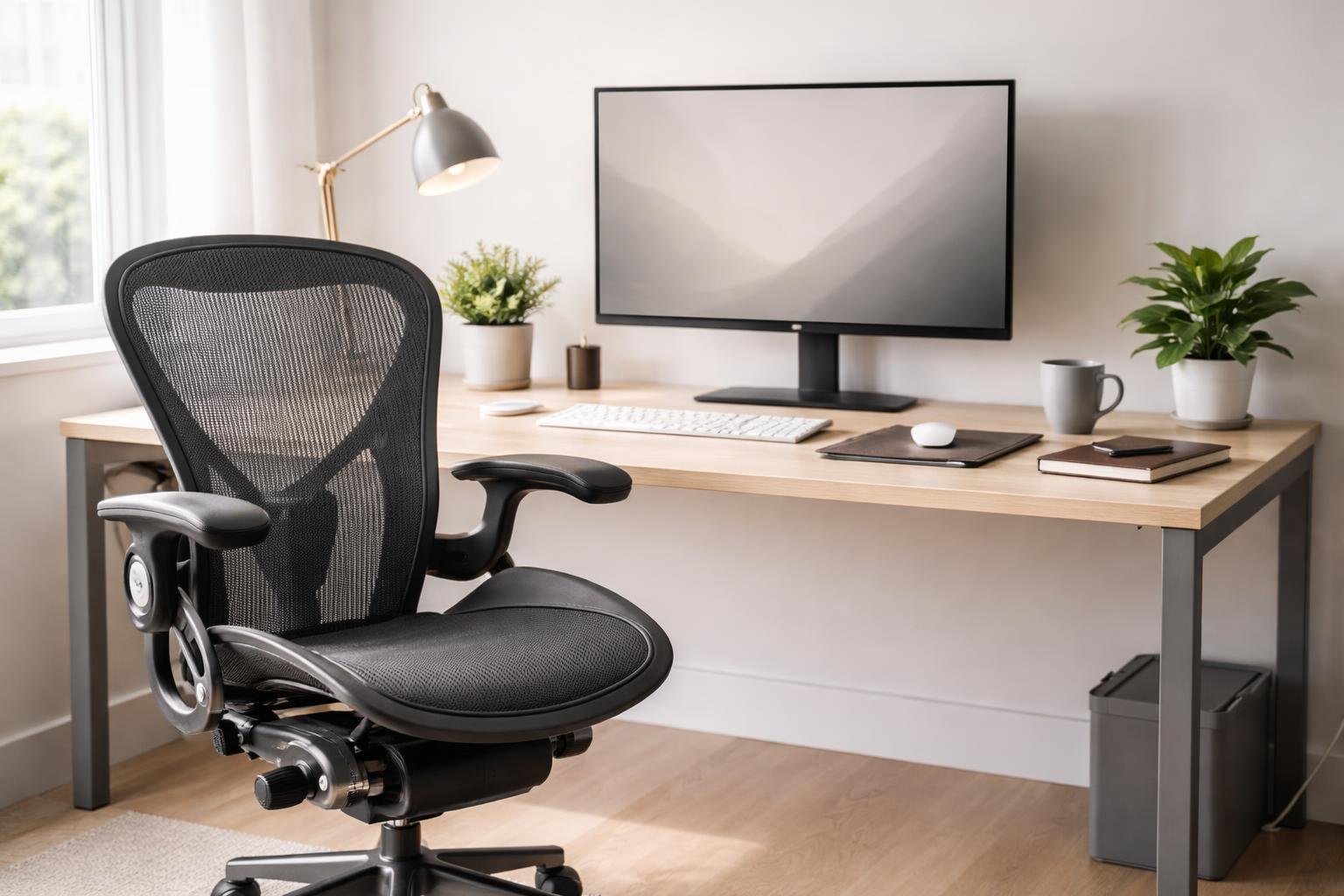
Hours at your desk demand a chair that actually supports you. The Herman Miller Aeron is a classic for ergonomic seating—it adapts to different body types, and you can pick a size that fits you well. The mesh keeps you cool and distributes weight evenly, which is honestly a lifesaver on long days.
Everything’s adjustable—height, armrests, tilt, recline tension. Many models come with PostureFit SL support, stabilising your lower back and encouraging a neutral spine. It’s not cheap, but the durability and recycled materials make it a smart long-term pick if you’re serious about comfort.
Read our Herman Miller Aeron Review for 2026 here.
2) Dell UltraSharp U2723QE 27-inch monitor
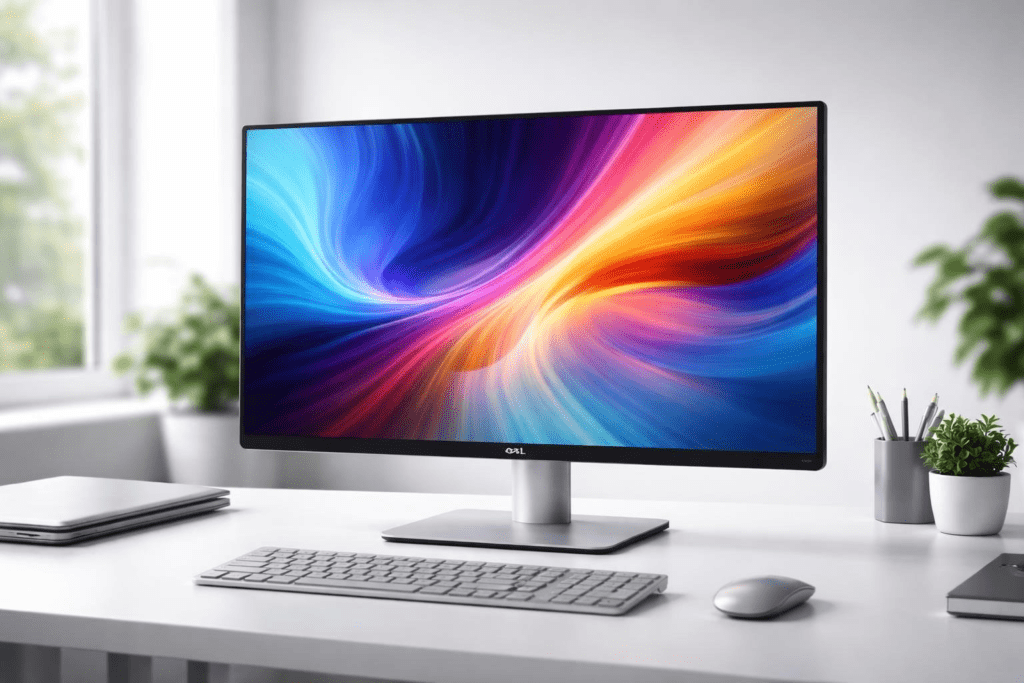
If you’re staring at a screen all day, image quality and comfort are everything. The Dell UltraSharp U2723QE’s 27-inch 4K display keeps text crisp and gives you plenty of space for multitasking. That extra room for side-by-side windows? It’s underrated.
IPS Black tech boosts contrast, and colour accuracy is spot-on for creative work. Wide viewing angles mean colours stay true even if you shift around. The single USB‑C cable handles power, video, and data, and the built-in hub plus KVM let you control two computers with one set of peripherals. You can adjust height, tilt, swivel, and pivot—so you’re not locked into one position all day.
3) Logitech MX Master 3 wireless mouse
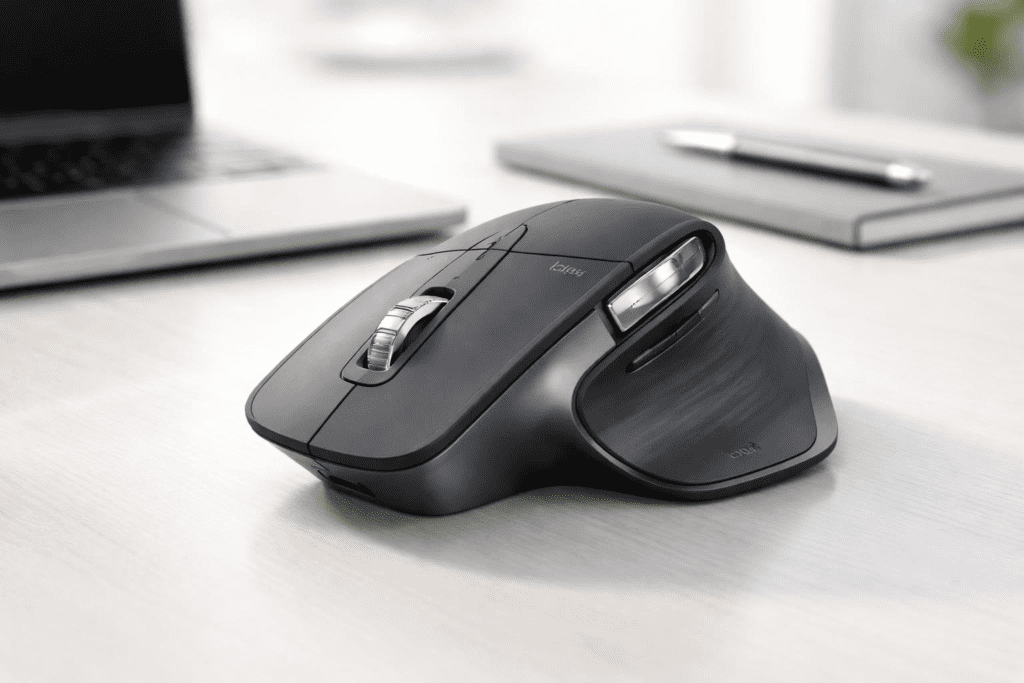
Let’s be honest, a clunky mouse is a productivity killer. The Logitech MX Master 3 is shaped for comfort, with thumb controls right where you want them. You can customise buttons for your favourite apps, which saves time on repetitive stuff.
The MagSpeed scroll wheel flies through documents or shifts into precise mode for detail work. It’s quiet, too—a plus for calls or shared spaces. Switching between devices is easy, and the battery lasts ages. If your work needs accuracy and custom shortcuts, this mouse just makes sense.
4) Keychron K8 mechanical keyboard
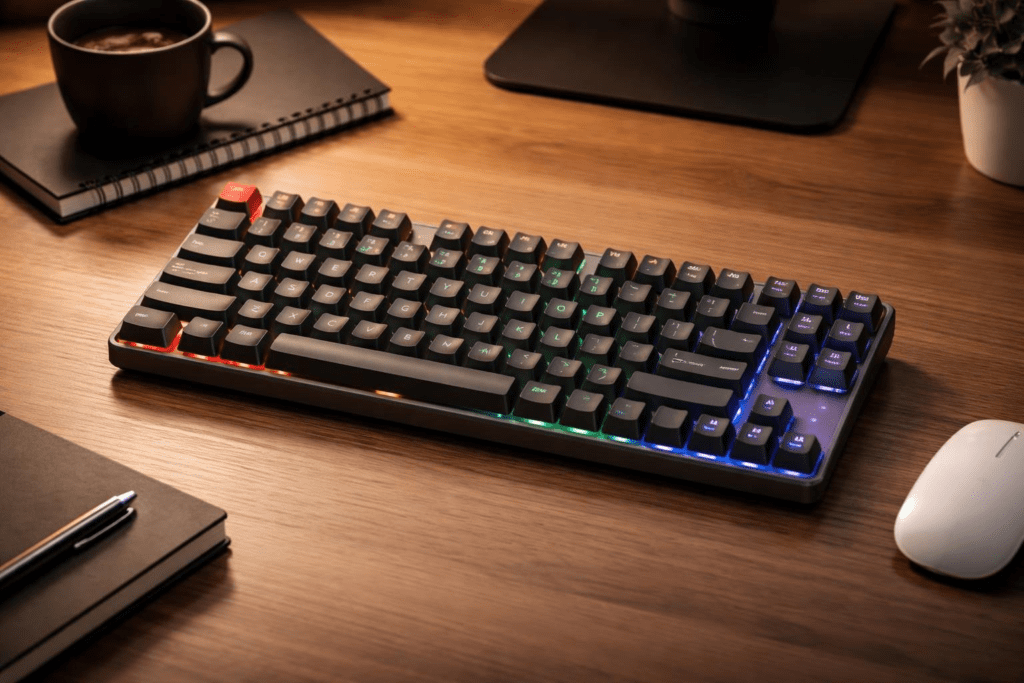
Typing all day? You want something that feels good and doesn’t hog your desk. The Keychron K8’s tenkeyless layout frees up space, which matters in smaller rooms. It works with Mac and Windows, connects over Bluetooth or cable, and lets you swap between devices seamlessly.
You can pick from different Gateron switches—Brown is a favourite for tactile feedback without too much noise. Some models are hot-swappable, so you can change switches if your tastes evolve. The aluminium frame is sturdy, and backlighting helps in dim light. It’s a solid, compact choice for everyday typing.
5) FlexiSpot electric standing desk
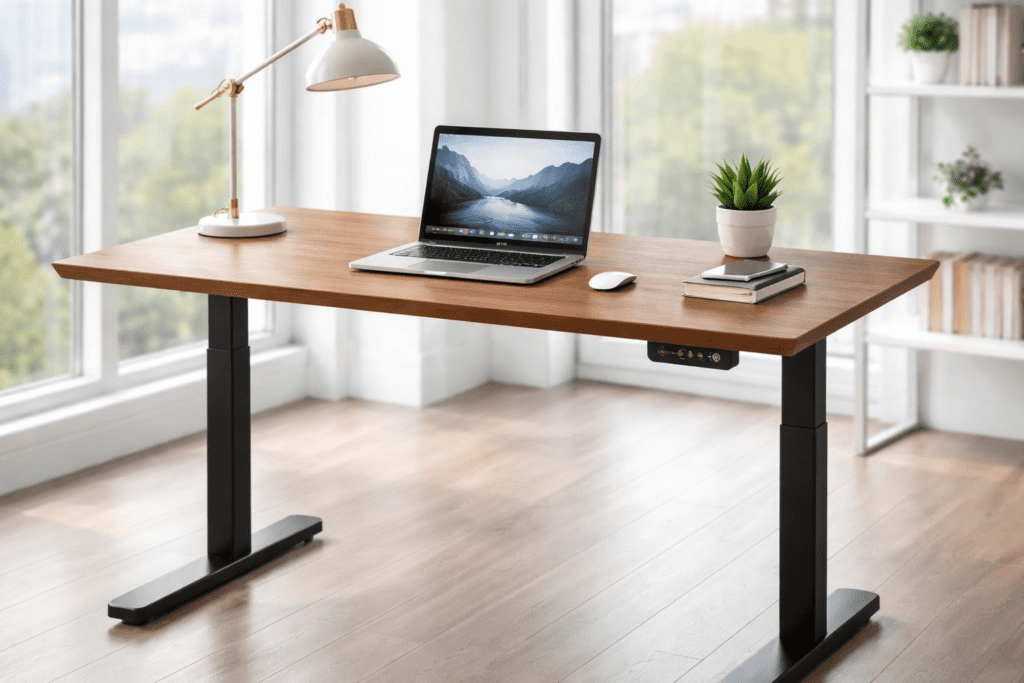
Switching between sitting and standing is easier with a FlexiSpot electric desk—just press a button. Most models use dual motors for smooth movement, and you can save your preferred heights with programmable controls.
Features like memory panels, cable management, and desktop size options make these desks practical for home offices. Assembly isn’t too bad, and they’re sturdy enough for all your gear. If you want more movement without interrupting work, an electric standing desk is a pretty smart upgrade.
6) Blue Yeti USB microphone
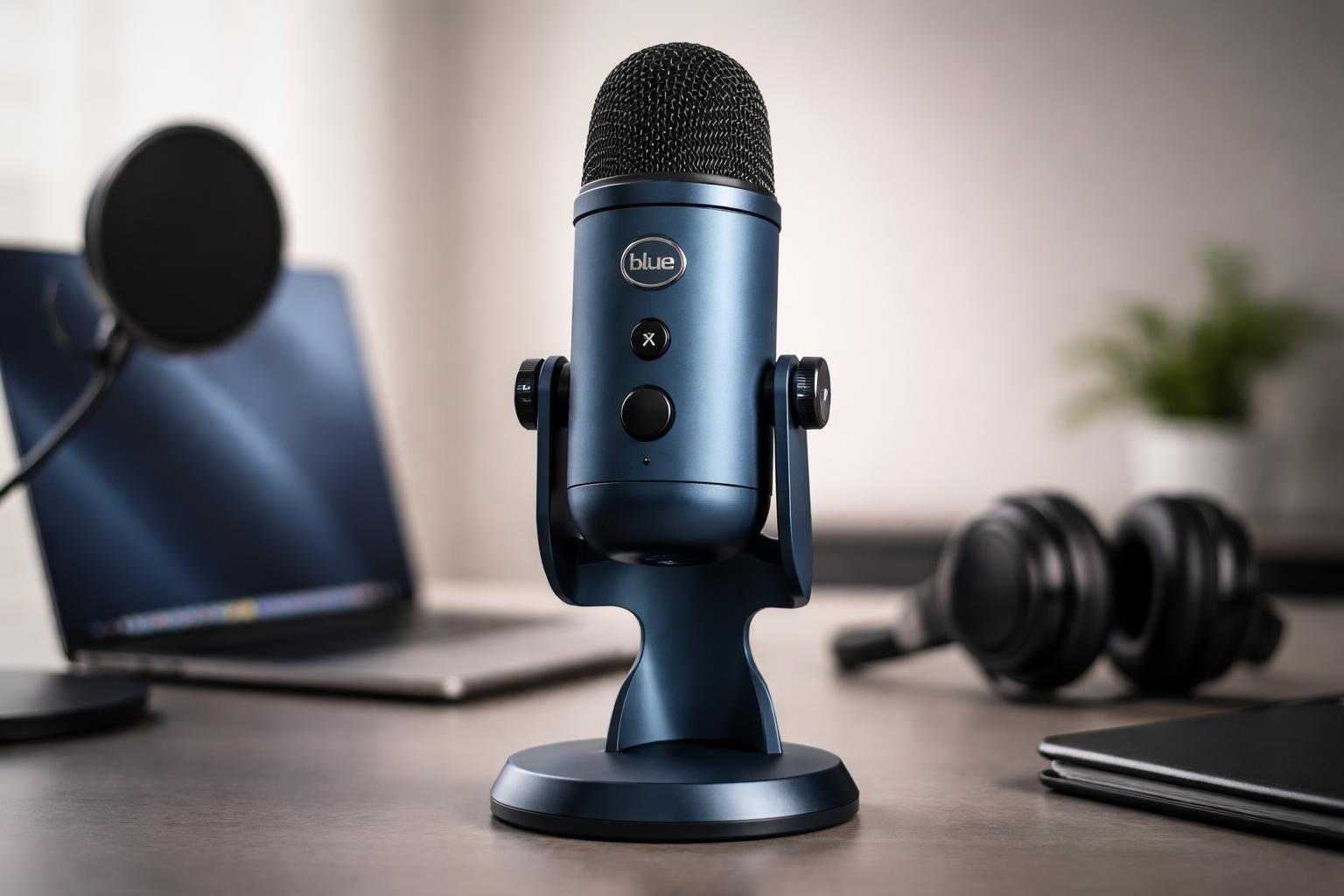
If you’re on video calls, hosting webinars, or making content, clear audio matters. The Blue Yeti plugs straight into your computer—no fuss with extra gear. It works with most software and doesn’t need an external interface.
With multiple pickup patterns, you can switch modes depending on whether you’re solo, interviewing, or recording a group. On-mic controls for gain, mute, and headphone volume keep things simple. The built-in headphone jack means you hear yourself in real time, so you can adjust levels and catch background noise.
The stand angles the mic toward your mouth for better clarity. Just keep it around 15–20 centimetres away and speak into the front for best results.
7) Philips Hue smart lighting
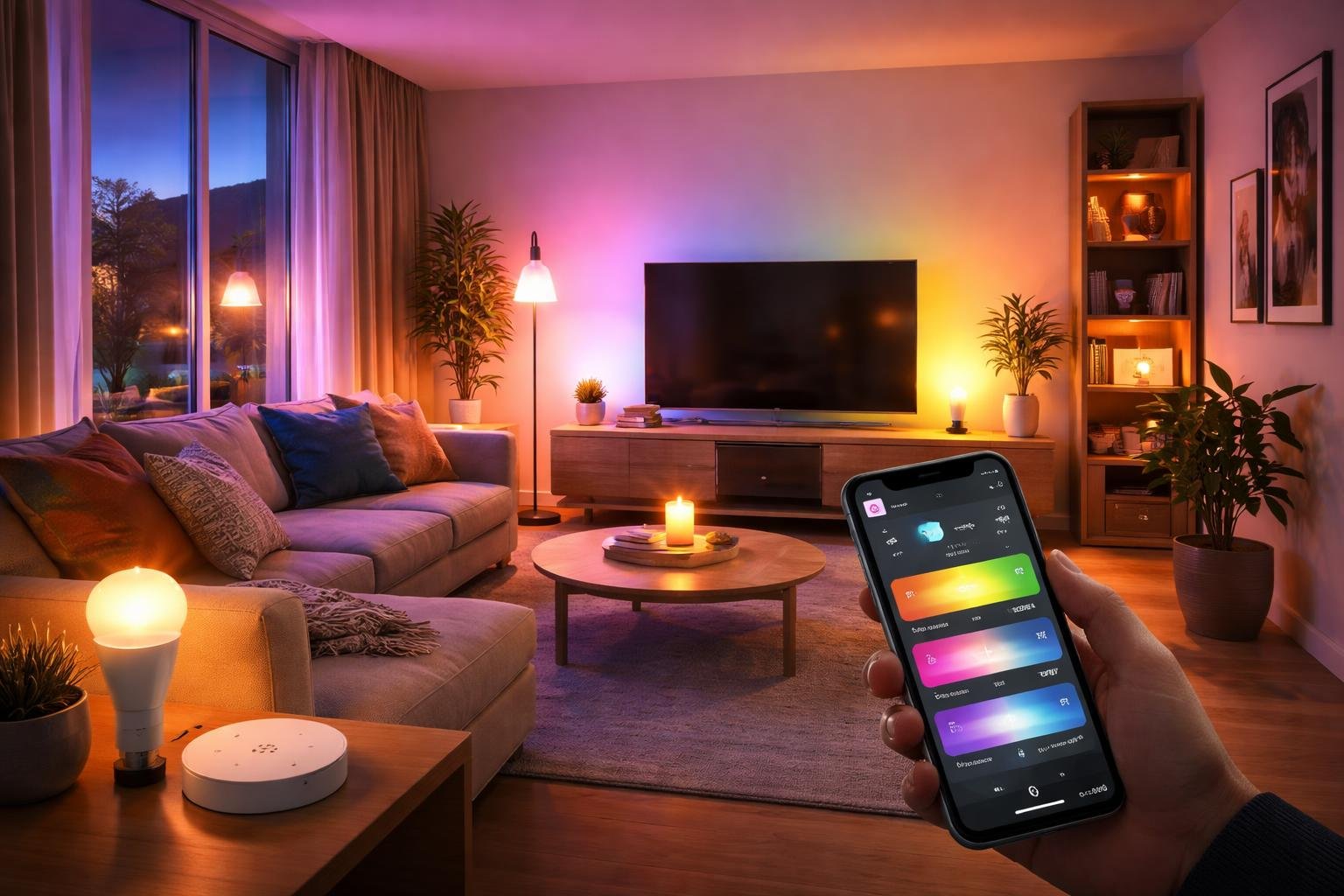
Lighting really shapes your mood and focus. Philips Hue smart bulbs let you tweak brightness, colour temperature, and tone for different tasks. Cooler light helps you concentrate, while warmer tones are nicer for winding down.
The starter kit usually has LED bulbs and a Hue Bridge, so you can control everything from your phone or with your voice. Set schedules to turn lights on before you start work, dim them at night, or automate routines if your hours shift a lot.
If you’re on video calls, you can fine-tune light levels to avoid harsh shadows. Motion sensors and visual alerts add extra convenience. The best part? You can upgrade your lighting without rewiring the whole room.
8) Logitech C920 HD Pro webcam
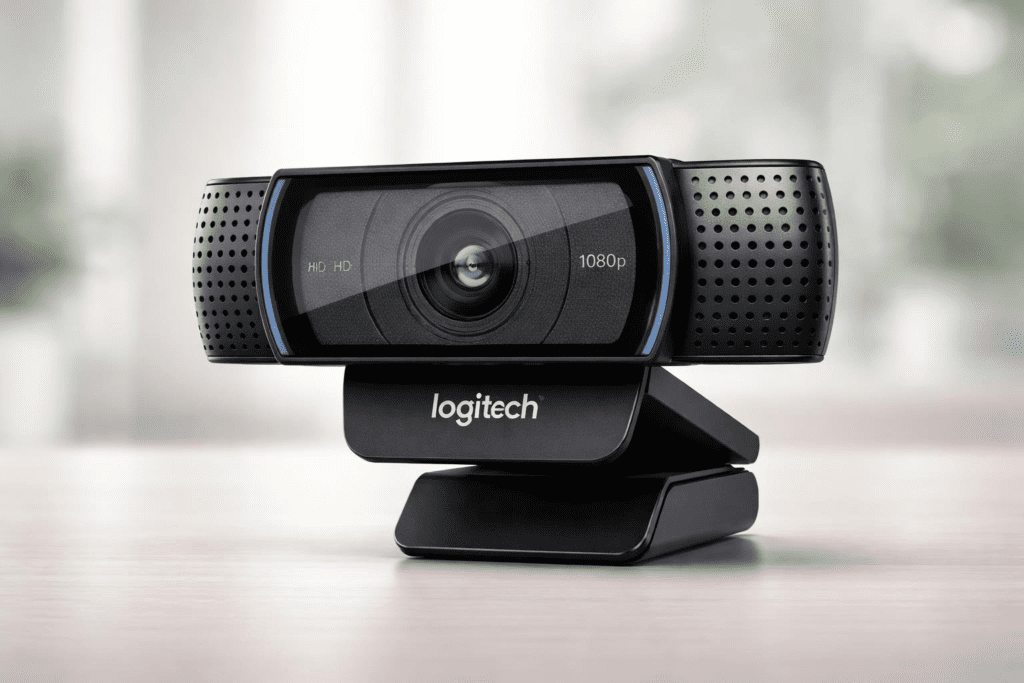
Frequent video meetings need a webcam you can count on. The Logitech C920 HD Pro records in Full HD 1080p at 30 fps, so you look sharp and clear.
The glass lens gives you a 78-degree field of view—enough to keep you in the frame but not your whole room. Automatic light correction helps if your lighting isn’t perfect. Dual built-in mics capture clear stereo audio, so you might not even need a separate mic.
Mount it on your monitor or laptop with the adjustable clip. Setup’s quick, and you can tweak settings with Logitech’s software if you want.
9) Bose QuietComfort 45 headphones
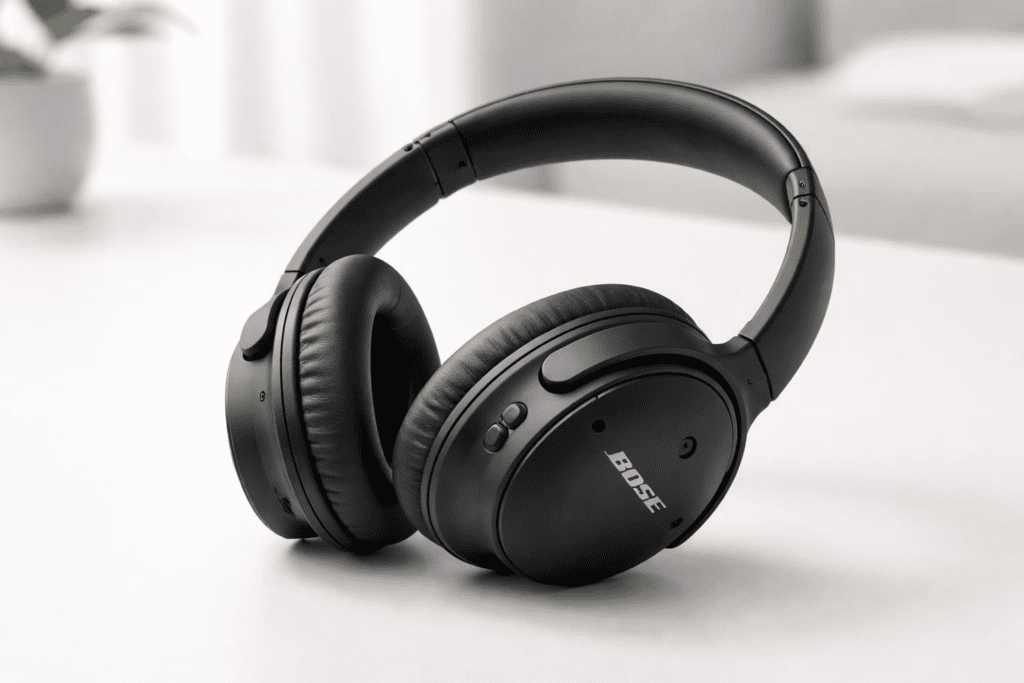
Noise is a real problem at home, especially with other people around. The Bose QuietComfort 45 headphones use microphones to cancel out distractions, so you can focus or take calls in peace.
They’re comfortable for hours—plush ear cushions and a light frame help. You get up to 24 hours of battery life, and switching between devices is simple. Sound is balanced and clear, whether you’re on calls or just listening to music while you work. If you want dependable noise cancelling without extra fuss, these are a solid pick.
10) Anker PowerPort USB hub
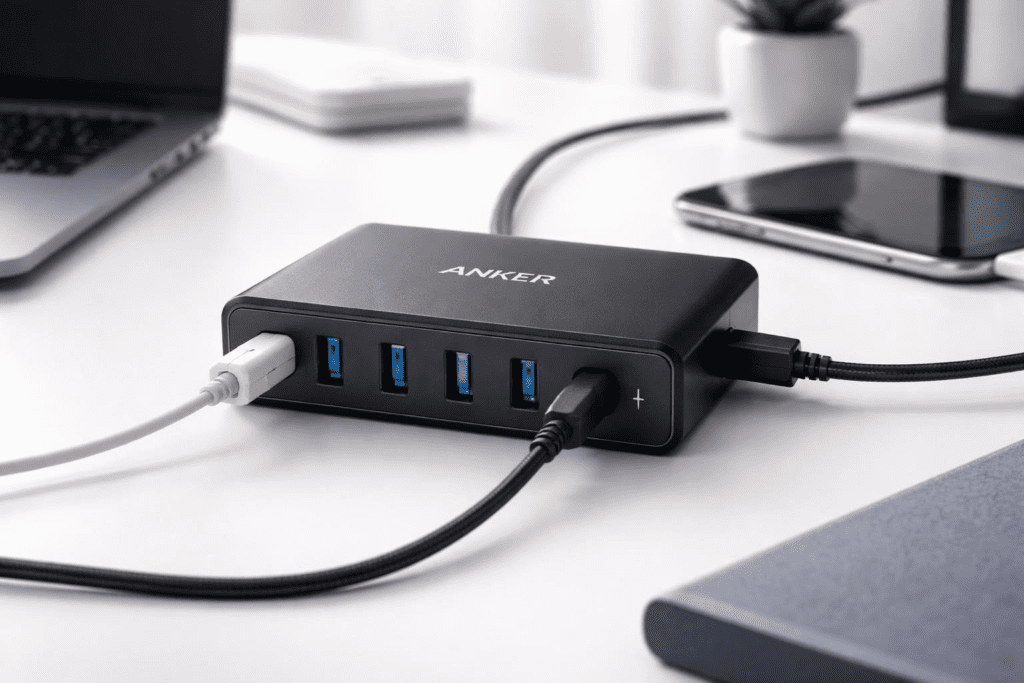
Running out of USB ports is annoying. An Anker PowerPort USB hub keeps everything connected and your desk less tangled. Models like the Anker 10 Port 60W Data Hub give you plenty of USB 3.0 ports for data plus dedicated charging spots. That means keyboard, mouse, drives, phone, and tablet—no problem.
If you don’t need a full docking station, a hub is a simple, affordable way to expand your laptop’s connectivity. Just check the number of ports, data speeds, and power output before you buy, especially if you need fast transfers or lots of charging.
A good USB hub clears up clutter and saves you the hassle of constant cable swaps, so you can stay focused.
Optimising Your Work From Home Office Environment
How you set up your space affects your health and output. Pay attention to posture, movement, and lighting to keep strain down and your mind sharp.
Ergonomics and Productivity
Adjust your chair so your feet are flat and your knees are at about 90 degrees. Set the seat height so your forearms are parallel to the desk when typing.
Keep your monitor at eye level, roughly an arm’s length away. The top of the screen should be at or just below eye height to avoid neck pain.
- Chair: Adjustable height, lumbar support, stable base
- Desk: Lets your elbows rest at 90 degrees
- Keyboard and mouse: Close enough so you’re not reaching
- Footrest (if needed): Keeps your feet supported
If you have a height-adjustable desk, switch between sitting and standing now and then—even short breaks help with stiffness and blood flow.
Try to move every 30–60 minutes. Stand up, stretch, look away from the screen. It’s a small thing, but it really helps you stay focused.
Lighting and Ambience
Put your desk near a window if you can, but don’t sit with your back to it. Side lighting’s usually best—it cuts down on screen glare and helps your eyes.
If you’re short on natural light, try layering your lighting:
| Type of Light | Purpose |
|---|---|
| Overhead light | General room visibility |
| Desk lamp | Focused task lighting |
| Ambient light | Reduces contrast and glare |
Pick neutral white bulbs (about 4000K) for work. They’re easy on the eyes—clear, but not too harsh.
Try to keep your workspace calm and uncluttered. Only keep what you really need on your desk, and stash cables out of sight to minimize distractions.
Noise is another big one. Soft furnishings, rugs, or just a good pair of noise-cancelling headphones can help keep things steady and cut down on interruptions.
Maintaining Wellbeing While Working Remotely
Remote work’s flexible, sure, but it can blur boundaries and make it easy to stay glued to your chair. Protect your wellbeing by sticking to routines and keeping distractions in check.
Establishing Healthy Routines
Try to start and end work at the same times each day. Having a set schedule helps you switch off and keeps work from bleeding into everything else.
Here’s a simple daily structure you might try:
- Set a start-up ritual—maybe review your tasks or jot down your top three priorities.
- Take quick breaks every 60–90 minutes to stand up, stretch, or walk around.
- Step away for lunch instead of eating at your desk.
Little ergonomic tweaks matter. Adjust your chair and desk so you’re sitting comfortably, with your screen at eye level and your feet flat. It sounds basic, but it really does help your neck, back, and wrists.
Don’t forget your mental wellbeing. Block out time for focused work, but also make space for informal chats with colleagues. Regular breaks and clear boundaries help you stay sharp and avoid burnout.
Minimising Distractions
Home distractions—noise, digital pings, or family—can pile up fast. Tackle them head-on.
Set physical boundaries first. Even a small desk in a corner works. When you leave that spot, you’re done for the day. Simple as that.
For digital noise, a few rules go a long way:
- Turn off notifications you don’t need.
- Switch on “Do Not Disturb” during deep work.
- Only check email at certain times, not all day.
Let people in your house know your working hours—maybe post a schedule or close the door. It helps cut down interruptions.
And keep your desk tidy. Only keep essentials nearby. A clean space makes it easier to focus on what you’re actually doing.
Frequently Asked Questions
A solid home office needs reliable tech, comfy furniture, good organisation, and lighting that doesn’t give you a headache. When you pick gear with a clear purpose, you’re just going to feel better and get more done—simple as that.
What essential items should you consider for an efficient home office setup?
Start with a supportive chair—something like the Herman Miller Aeron—and a height-adjustable desk, for example, the FlexiSpot electric standing desk. They’re the backbone of your setup and make a real difference in comfort.
Add a sharp monitor like the Dell UltraSharp U2723QE 27-inch, plus a solid keyboard and mouse—the Keychron K8 and Logitech MX Master 3 are both great picks. This combo makes long hours at the desk a lot more bearable.
Don’t forget fast internet, a decent webcam, and noise-cancelling headphones if you’re on video calls a lot.
Which technology investments are crucial for enhancing productivity in a work from home environment?
Your main computer matters most. Get a fast laptop or desktop with enough RAM so everything runs smooth—email, video calls, cloud apps, all of it.
A big, color-accurate monitor (like the Dell UltraSharp line) saves you from flipping between tabs and makes working with docs or spreadsheets easier.
Upgrade your keyboard and mouse too. A mechanical keyboard and ergonomic mouse can really cut down on fatigue if you’re typing all day.
How can ergonomics be integrated into home office design to improve comfort and efficiency?
Set your chair so your feet are flat and your knees are at about 90 degrees. Make sure your lower back feels supported.
Keep your monitor at eye level and about an arm’s length away to avoid neck strain. Neutral posture is key.
If you can, switch between sitting and standing with an electric desk. Standing up for a bit every hour can really help with stiffness and focus.
What are the top organisational tools recommended for maintaining a tidy and effective home office space?
Use cable trays or clips to get wires off your desk and floor. It’s safer and just looks better.
Drawer organisers or desktop trays are handy for pens, chargers, or other small stuff. Keeping things within reach stops clutter from piling up.
Digital organisation’s just as important. Set up clear folders in your cloud storage so you can find files fast and avoid duplicates.
Can you suggest some effective strategies for minimising distractions when working from home?
Set real working hours and tell others in your house. Boundaries matter.
Noise-cancelling headphones are a lifesaver for blocking out background noise, especially during meetings. Sometimes soft instrumental music helps too.
Try to keep your work area separate from where you relax. Even a small, dedicated corner with a consistent setup tells your brain it’s time to work.
What lighting solutions are best suited for creating an optimal work from home office atmosphere?
Try setting up your desk close to a window for some natural light, but steer clear of direct glare on your screen. Side lighting tends to work out better than having a window right behind or in front of you—less squinting, fewer headaches.
An adjustable desk lamp with neutral white light is handy for focused tasks. You want enough brightness to keep your eyes comfortable, but nothing so harsh it throws weird shadows everywhere.
If you’re on video calls a lot, a soft, front-facing light can make a noticeable difference. Diffused, even lighting helps you look clearer on camera without making the whole space feel washed out.